Edit and publish your site with CraftPages
CraftPages is a free, open-source desktop app for Mac, Windows and Linux. It opens a plain-HTML site from a folder and lets you, or a client, edit it like a document: click a heading and type. The layout and the code stay as you wrote them. It publishes over SFTP, so it works with Pagehaus as it is.
1. Create your site on Pagehaus
Create a free site if you haven't yet. Its name is your SFTP username, and it'll be live at
https://yoursite.pagehaus.site/.
2. Open your site in CraftPages
Download CraftPages, click
Open project and choose the folder with your site's index.html. It lists your pages
right away; there's nothing to convert.
Then, in Project settings, set Base URL to your site's address
(https://yoursite.pagehaus.site, or your own domain) so its sitemap and social previews use full
links.
3. Add Pagehaus as a connection
Open App settings, click Add FTP / SFTP server and fill in:
- Type
- SFTP
- Name
- Pagehaus
- Server
sftp.pagehaus.app- Port
2022(not the 22 it suggests)- User name
yoursite- Password
- your Pagehaus password, or your login's own password if you set one
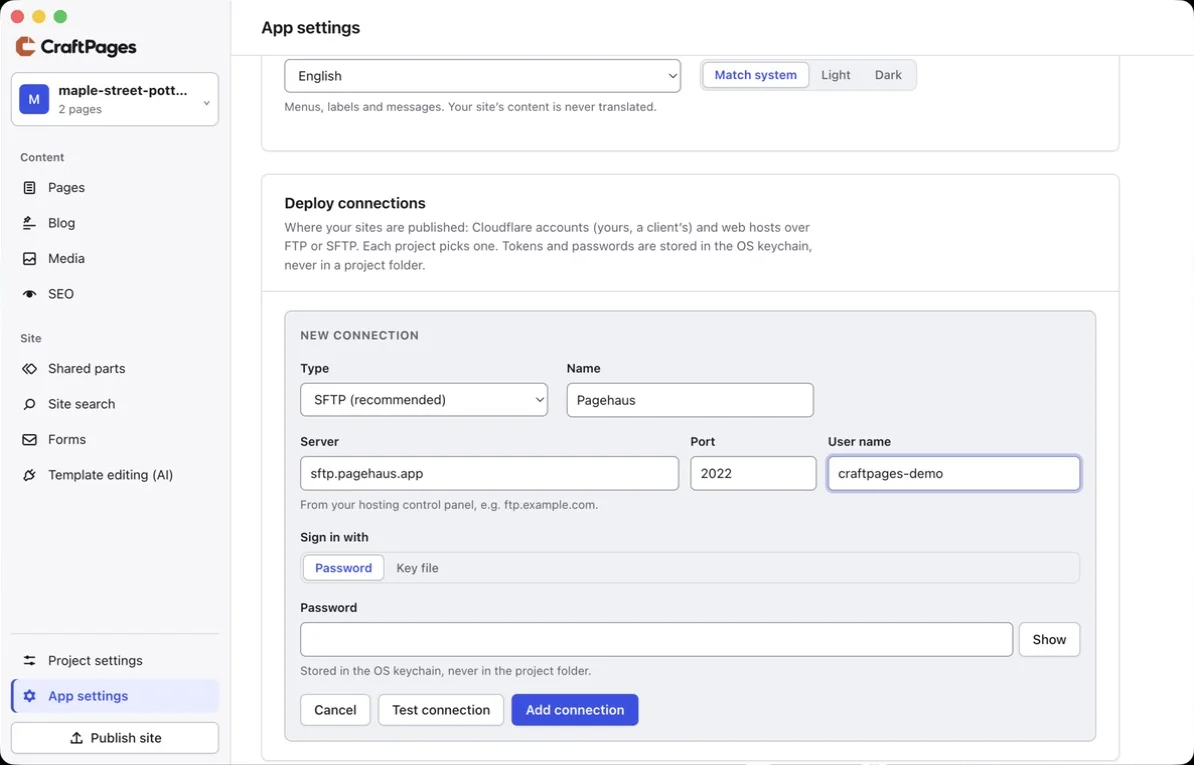
Click Test connection. The first time, it shows the server's key: compare it with the fingerprints on Connecting with SFTP. Then click Add connection. To sign in with an SSH key instead, choose Key file and add the key's public half to your login under your site's SFTP tab.
4. Choose it for your project
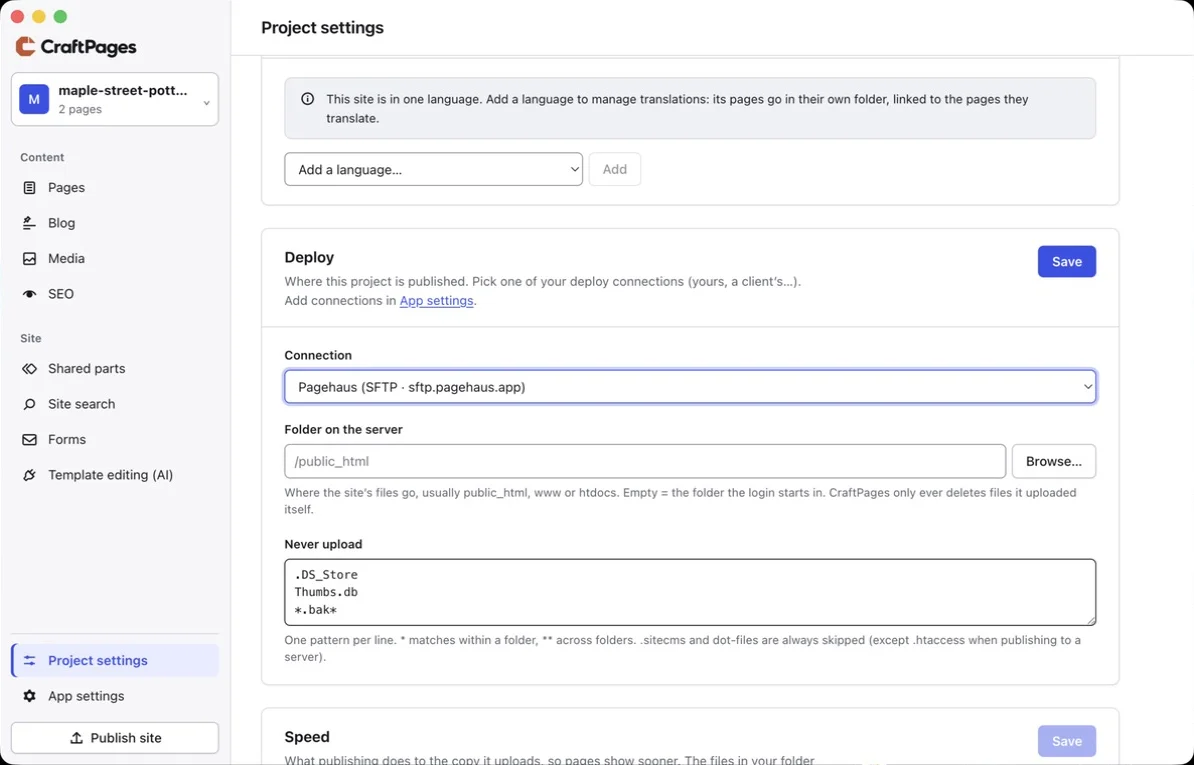
In Project settings → Deploy, pick your Pagehaus connection and leave
Folder on the server empty: the login starts at the top of your site. (The
/public_html it shows is only an example, for other hosts.) Click Save.
5. Publish
Click Publish site, then Publish to the live site. On a new Pagehaus site it warns that the server folder already has files: those are the starter page we made for you, so choose Publish anyway. Your pages replace it.
CraftPages never deletes files it didn't upload, so the starter style.css and
includes folder stay on your site. If your site doesn't use them, delete them once under your site's
Files.
Editing
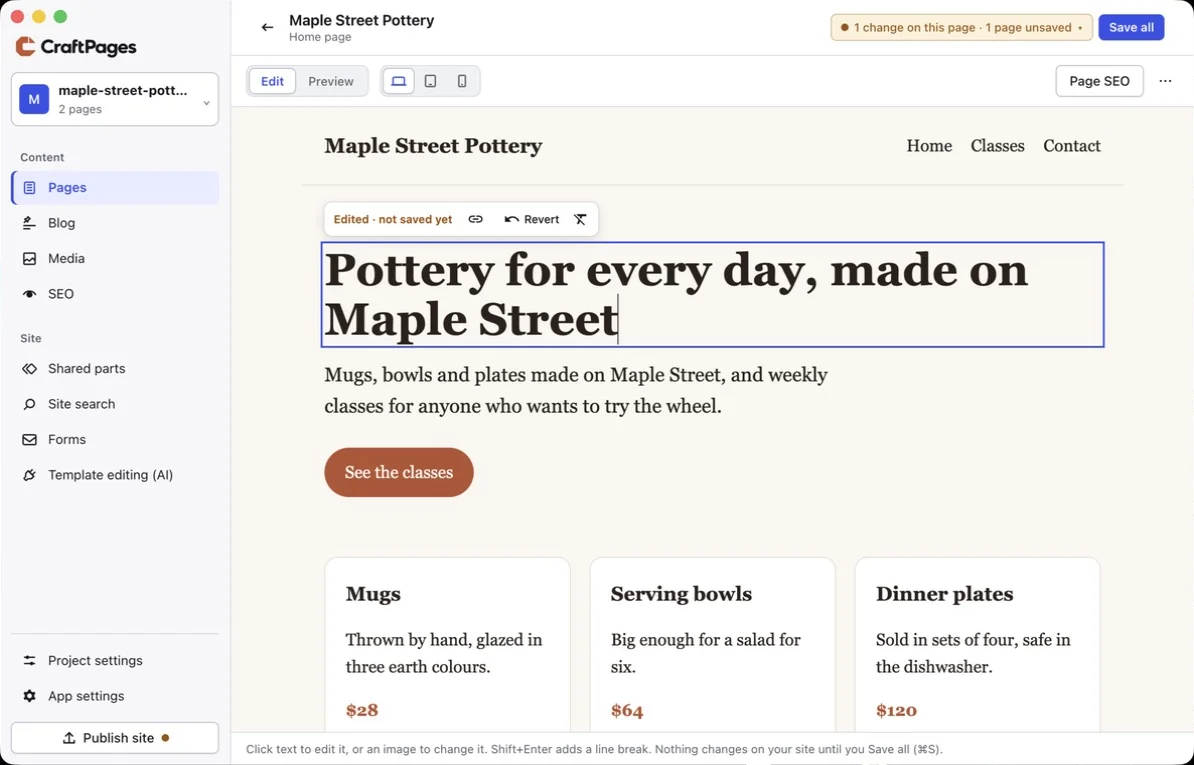
Open a page from Pages, click any text and type. Nothing changes in your folder until you click Save all, and nothing changes online until you publish again. Each publish uploads only the files that changed.
Every publish is kept in CraftPages' Publish history, and Pagehaus keeps its own version history of your files, so a mistake can be undone from either side. If you also edit files in the Pagehaus dashboard, make the same change in your folder, or your next publish from CraftPages will put the old version back.
When you change a blog post's address in CraftPages, it writes the move to a _redirects file, which
Pagehaus follows, so old links to the post keep working. See redirects.
Handing a site to a client
This is what CraftPages is made for. Build the site your way, then install CraftPages on your client's computer with the same folder and connection. They can change text, images and blog posts; the code editor stays hidden unless you turn it on. On a Personal or Pro plan, give them an extra SFTP login of their own, so you can remove it without changing yours.
Contact forms
Pagehaus forms work in pages you edit with CraftPages: set the form's action to
/_form/contact and its method to post, and messages are emailed to you. See
contact forms. For bookings and deposits, CraftPages also connects to
CraftForms, a paid form service from the same author.
Your own domain
On a Personal or Pro plan, add the domain under your site's Domains tab and set the DNS records it shows (custom domains guide). Your CraftPages connection doesn't change; update the Base URL in Project settings.
Steps checked October 2026 with CraftPages 1.4, publishing to a Pagehaus site.