Learn HTML · Lesson 3 of 8 · about 15 minutes
Links and images
Links are what make it the web, and a photo makes a page feel like yours. In this lesson you'll add both to your home page, and learn the file-name rule that trips up almost everyone the first time.
Your first link
A link is an <a> element (a for anchor). The text between the tags is what visitors
click; where it goes is in href:
Try it: change the code
What the browser shows
href is an attribute: extra information written inside the opening tag, as
name="value". You met one already: lang="en" in lesson 1. Here are the parts of a link:
<a href="https://en.wikipedia.org/wiki/Sourdough">Wikipedia's sourdough page</a><a href="…">opens the link and says where it goes.Wikipedia's sourdough pageis the text people see and click.</a>ends it.
In the examples on this page, links open in a new tab, because most sites refuse to open inside another page. On your own page, they open in the same tab.
Kinds of addresses
- Another website: the full address, starting with
https://. The easiest way to get it right is to open the page and copy the address from the browser's address bar. - Your own pages and files: just the file name, like
about.htmlorbread.jpg. The browser looks for it in the same folder as the page. Lesson 4 is all about this. - An email address:
mailto:followed by the address. Clicking it opens the visitor's email program with a new message to you. (Lesson 7 shows a contact form, which works for people who don't have an email program set up.) - A phone number:
tel:and the number, like<a href="tel:+14165550123">. On a phone, tapping it calls.
Write link text that makes sense alone
"Click here" and "this link" tell nobody where they're going. Screen readers can list all the links on a page, and search engines read link text to learn what the other page is about. So put the description in the link:
- Not so good: For my recipe, click here.
- Better: Here's my sourdough recipe.
You might see target="_blank" on links, which opens them in a new tab. Use it sparingly: visitors
can open a new tab themselves when they want one, and the Back button stops working for links that do it for them.
Your first image
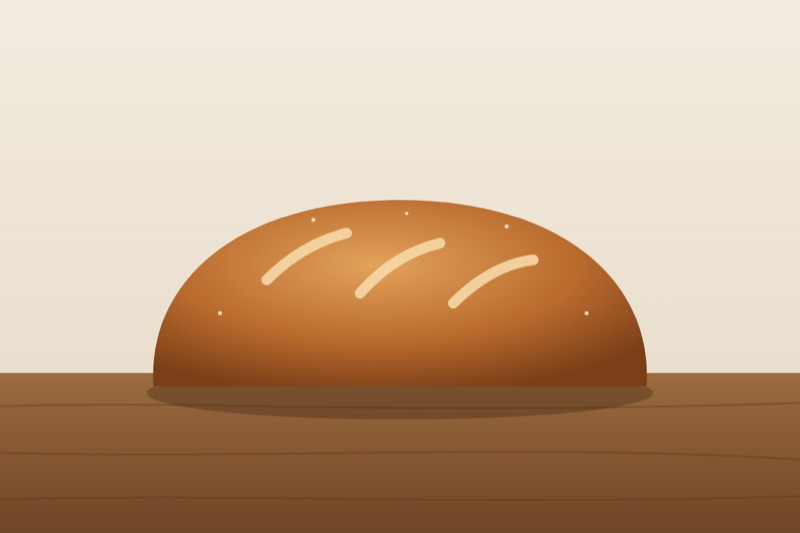
Choose a photo for your page, or download this one (a loaf of bread, 25 KB) to
follow along. Put the file in your my-site folder, next to index.html, then show it
with <img>:
Try it: change the code
What the browser shows
src(source) is the image's address. It works likehref: a file name for your own images, a full address for an image elsewhere.altis the text alternative, explained next.width="250"shows it 250 pixels wide, and the height follows. For now, use it to keep big photos from taking over the page; in lesson 5, CSS will make images fit any screen.
Like <br>, <img> has no closing tag: there's nothing to put inside it.
Alt text: say what the picture shows
People who can't see the image hear the alt text read out by their screen reader. It also
appears when the image can't load, and search engines use it to understand the picture. Describe what
matters about the picture in a short sentence: alt="A round loaf of bread on a wooden board",
not alt="image" or alt="IMG_2041".
If an image is only decoration (a swirl, a divider), write alt="", empty, so screen readers skip it.
Don't leave alt out altogether: then some screen readers read out the file name instead.
The file-name rule
Here's the same image, with its name written slightly differently:
Try it: change the code
What the browser shows
On your own computer this would probably show the bread, because Windows and macOS treat Bread.JPG
and bread.jpg as the same file. Web servers don't: to them they're two different names, and one of
them doesn't exist. So you get the alt text and a broken-image icon instead. Change it back to
bread.jpg and the picture returns.
This is the most common reason a site works on your computer and breaks once it's online. You avoid it with three habits:
- Name files in lowercase:
bread.jpg, notBread.JPG. - No spaces: use hyphens instead, as in
saturday-loaf.jpg. - Check the ending:
.jpgand.jpegare different names too. Phones often save photos asIMG_2041.JPGor.HEIC; rename them, and convert.HEICphotos to JPEG.
Keep photos small
A photo straight from a phone is often 4,000 pixels wide and several megabytes: slow to load, especially on a phone with a weak signal. Shrink it before you add it to your site. About 1,600 pixels wide is plenty for a photo that fills the screen, and 800 is enough for most others.
- Windows: open the photo in Photos, click … and choose Resize image.
- Mac: open it in Preview and choose Tools › Adjust Size, then File › Export as JPEG.
Use JPEG (.jpg) for photos and PNG (.png) for screenshots and logos with sharp edges.
WebP (.webp) is smaller than both, and every current browser shows it.
A picture that's a link
Put an <img> inside an <a>, and clicking the picture follows the link.
Here it opens the full-size photo:
Try it: change the code
What the browser shows
Put it together
Add a photo and a few links to your home page. With them, Sam's page looks like this:
<!DOCTYPE html>
<html lang="en">
<head>
  <meta charset="utf-8">
  <meta name="viewport" content="width=device-width, initial-scale=1">
  <title>Sam Rivera</title>
</head>
<body>
  <h1>Sam Rivera</h1>
  <p>Weekend baker in Toronto. This is my corner of the web.</p>
  <img src="bread.jpg" alt="A round loaf of bread on a wooden board" width="400">

  <h2>About me</h2>
  <p>I started baking bread in 2020, like everyone else, and <strong>never stopped</strong>.
  These days I bake most Saturdays and give most of it away.</p>

  <h2>What I bake</h2>
  <ul>
    <li>Sourdough and rye bread</li>
    <li>Birthday cakes, for friends who ask nicely</li>
    <li>Cinnamon buns, <em>only</em> in winter</li>
  </ul>

  <h2>Where I learned</h2>
  <ul>
    <li><a href="https://en.wikipedia.org/wiki/Sourdough">Sourdough, on Wikipedia</a></li>
    <li><a href="https://www.kingarthurbaking.com/recipes">King Arthur Baking's recipes</a></li>
  </ul>

  <h2>Say hello</h2>
  <p>Email me at <a href="mailto:sam@example.com">sam@example.com</a>.</p>
</body>
</html>
Try it here first if you like. This is the part inside <body>:
Try it: change the code
What the browser shows
If it doesn't work
- A broken-image icon or the alt text instead of the picture: compare the name in
srcwith the file's real name, letter by letter, including capitals and the ending. Make sure the file is in the same folder asindex.html. - An address starting with
C:\orfile://(some editors add these when you drag a file in): it points at your computer, so it works for you and nobody else. Replace it with just the file name. - The rest of the page turned into one big link: a
</a>is missing. - The link goes nowhere: check that the address starts with
https://. Without it, the browser looks for a file of that name in your folder.
Check your work
- Your page shows a photo, and its file name is lowercase, with no spaces.
- The photo has
alttext that describes it. - You have at least one link to another site, and clicking it works.
- Your link text says where the link goes.
Next, you'll add a second page to your site, and link the pages together.